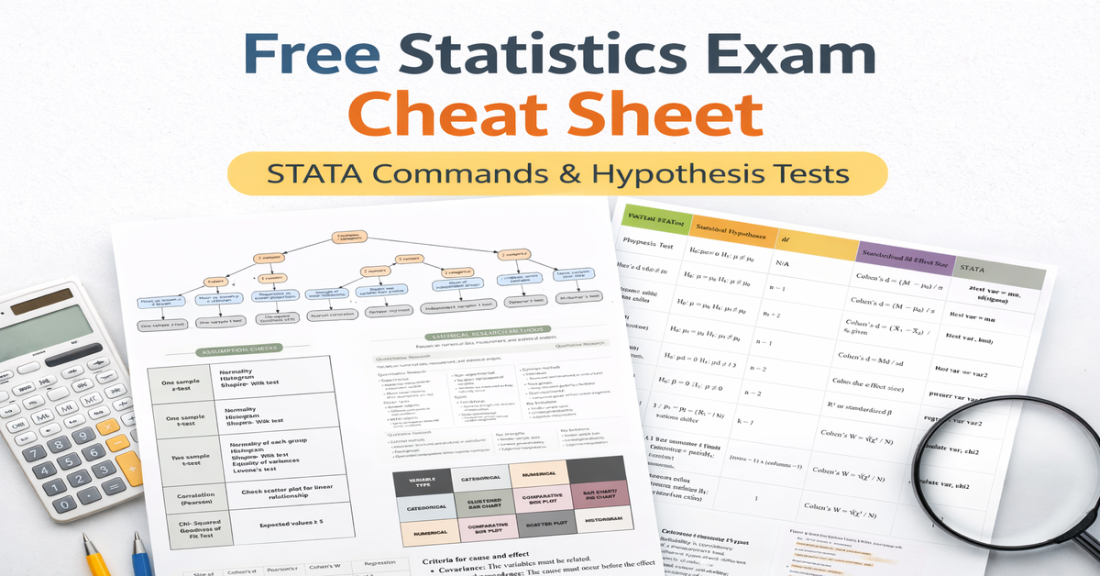
This Page Covers
- Setting up Stata
- Importing & Exporting files
- What do all the main buttons mean??!
- Basic descriptive statistics
Stata Commands Needed
| Task | Command | Explanation |
| Clear data | clear all | Clears the current dataset from memory. |
| Load Dataset (Excel) | import excel "path\to\file.xlsx", clear | Loads an Excel dataset into STATA and clears existing data. |
| Save Dataset (Stata) | save "path\to\file.dta", replace | Saves dataset as a STATA file. |
| Create/Edit Do-file | doedit | Opens the Do-file editor. |
Descriptive Statistics | summarize varName, detail | Detailed summary stats for one variable. |
| Descriptive Statistics | tabstat varName, statistics(mean sd range median iqr) | Custom summary statistics. |
Setting Up Stata
Yayy wlecome to Stata: your best stats friend for the rest of your psych degree.
Your relationship with this program is probably going to look akin to an enemies to lovers trope. At first it will perplex and frustrate you. You will stare at it and go ??? but I didn’t sign up to learn code?
Then you will realise the alternative back in the good ol’ days…was mechanically working it all out with fromulae. And you will love Stata.
But first, you will see this screen.

This is good. It looks weird, but don’t panic. It’s basically all the licensing and important info blah blah blah. Not relevant for doing stats. I actually like to clear this screen straight away with the ‘cls’ command so I have a fresh slate.
See? Nice and neat. This is a good time to point out the History tab on the side. Every command you type will show up there. If it’s in red, it means there was an error *or in my case I tried to type a command that didn’t exist*.

Being able to see each command you typed helps you to keep track of what you did in a session. It also saves future time because you can’t really save projects in Stata.
Think of it like a calculator. Every time you turn it on, it resets. So you’ll want to have a Do-file of your commands saved to import and pick up where you left.
What the heck is a Do-file? Well it’s basically a little file that saves all the commands you entered in a session. But we’ll get to that later. First let’s get a data set in.

As I said before, Stata is like a calculator. So it needs data fed to it before it can do anything. You can do this a couple ways but the most common way is to import an Excel spreadsheet. You’ll probably be given some as part of your course practicals.
You can do it by entering this command and writing in the file name as saved on your desktop:
import excel "path\to\file.xlsx", clear
Orrr you can just click the import button in the file tab and get it from your saved files. I usually just do it this way.

IMPORTANT NOTE: when you select your data to import you will have the option in a pop up box to “import first row as variable names”. Select: yes. It makes the layout way nicer.
Now if you click the data editor tab, you will be able to see all your imported data. You can see the variable names and also the raw numbers. Cool. Now we can do stuff with it.

Descriptive Statistics
Now we have the data in and ready to go. First thing we want to do is get a general picture of what we’re dealing with.
That’s where descriptive stats come in. Type in summarize. You’ll see something that looks like this:

Think of it like getting your bearings. You have an overview of the mean, SD, min and max scores of all the variables.
Want to see descriptive statistics for one variable in more detail? Easy. Just type in:
tabstat varName, statistics(mean sd range median iqr)
(Swap varName for the name of the variable as labelled in the data set)
You can see I did it for the ‘Gender’ variable below. The difference between summarize and tabstat is just flexibility and detail. Summarize gives you a broad and general view of a variable. Tabstat lets you customise what stats you’ll be shown (mean, SD, IQR) depending on what you ask it for. tabstat is better when you want specific statistics in a clean table.

Cool now you have the basics. Let’s get back to Do-files. See that list of commands we’ve racked up over our session? What if we want to remember them for another time?
We create a do-file. You can type in doedit to create a new do-file and it will appear as a new tab and you can write in your commands there.
Or, you can double click and drag to select all your commands. Right click and choose ‘send selected to Do-file Editor’. This will automatically chuck it into a Do-file for you.


Ta da, now you can save this as a file on your computer and access it/ import it back into Stata whenever you need.
Now the last thing you might want to do is save the data as a Stata file. Why? Basically it’s easier for Stata to work with than an Excel file. It’s like speaking in your native language vs translating. It keeps the structure of your data and formatting cleaner including any new variables, changed labels etc.
To do that you can use this command and write in which folder + file name:
save "path\to\file.dta", replace
Orrr if you’re like me and prefer button >>> commands you can click file –> save as –> stata data.

That’s it for the basic set up and introduction. See? Wasn’t too bad.
You Might Also Find Helpful…
- Free_Statistics_Exam_Cheat_Sheet_1200x628
- How to Report Statistics in APA 7th: Quick Templates + Examples
- Which Statistical Test Should I Use? (Quick Guide + Easy Table)